

- An activity is a reusable piece of work, such as laying 100 mm stormwater pipe. It can hold resources, assemblies, and other activities, and it can have production profiles. An activity can be added to an estimate on its own.
- An assembly is a set of materials counted per one unit, such as all the materials for one manhole. In an estimate it goes inside an activity.
Find activities and assemblies
The Activities & Assemblies page lists your company’s library. A count beside the heading shows how many items match, and a count line above the list says whether that is filtered: Filtered to N activities and assemblies while a search or tag filter is applied, or Showing all N activities and assemblies when it is not. The count covers every match, not just the rows loaded so far. Scroll through the list to see more; Stralos loads the part you reach automatically. Search matches an activity’s or assembly’s name, code, description, or unit. It also searches the resources and activities inside each one, and their categories. Results update after you pause typing. Use the Tags filter to show only items that carry the tags you tick. Each tag shows how many activities carry it. Your tag choice is kept while you move around Stralos in the same browser tab. Click Clear tags to remove the filter when nothing matches. Each row sits on one line. The name, description, and chips sit side by side, and text that does not fit is cut short with the full text on hover. Rows also show:- Last used and Used in: when the item was last added to an estimate and how many estimates use it, or Not used yet.
- An Assembly chip on assemblies.
- The item’s tags.
- Not in build-ups when the item is not offered when adding lines to a build-up.
- Day rate or Hour rate on activities measured in days or hours, with the default production rate below it, or No default production.
Activity details
The top of an activity’s page holds its details:
Tick Don’t offer this activity when adding lines to a build-up for an activity that only backs a day/card rate. It stays in the library and in day/card rate schedules, but estimators don’t see it when adding lines to a build-up.
As you type a name, Stralos checks it against the existing library and shows an inline error if it is already taken. If you try to save with an empty name, Stralos moves focus to the Name field.
Cancel and Save activity (or Save assembly) sit in the page header. A note under the title tells you whether everything is saved. Saving a new activity takes you to its own page. Select Back to activities & assemblies to return to the list. If you try to leave with unsaved changes, Stralos asks Discard changes? Choose Keep editing or Discard changes. Changes already saved are kept.
If you change the unit of an activity that has production profiles, Stralos asks you to confirm in a Change activity unit dialog. The numeric production rates are kept and take the new unit when you save.
To delete an item, open its action menu and select Delete…. Only admins can delete. The item is removed from the library and kept for history. Estimates that already use it are unaffected.
Tags
Tags help you group and find activities, for example Drainage. Tags belong to your company and are shared by everyone in it. In the Tags field on an activity’s page:- With nothing typed, the list shows your company’s tags and ends with + New tag…. Select it, type a name in Name the new tag, and select Add.
- As you type, matching tags appear first. Press Enter to pick the top match. If nothing matches exactly, select + Create new tag ”…” to create it.
- To remove a tag from the activity, select the cross on its chip, or press Backspace in an empty field.
Manage tags
Admins can select Manage tags on the Activities & Assemblies page to rename or delete tags. Renaming changes the tag on every activity that carries it. Deleting a tag removes it from every activity and from the filter; the activities themselves are unchanged.Build-up
The build-up sits below the details on an activity’s page, laid out like an estimate build-up. Each line shows a coloured pill for its resource group. Child activities and assemblies appear as their own blocks that you can expand and collapse. Optional lines sit under an Extra overs divider.Add lines
- Use the Add to … box at the bottom of the build-up to search for a resource, activity, or assembly and add it in one step. Use the Add an extra over to … box to add an optional line.
- Or select Add resource (or Add extra over) to browse. Filter by Activities, Assemblies, or Resources, select the items you want, set their count and quantity, then select Add to activity.
- You can also select Add item… in the activity’s action menu.
Edit lines
On the activity’s page you can change a line’s Count (How many: the number of people, machines, or identical items), Qty (the quantity each one uses for one unit of the activity), and unit cost directly in the build-up. Move focus away or press Enter to save the change. If a save fails, the error appears beside the line and your value stays so you can retry. You can keep typing in other fields while a save is in progress; a later edit is not overwritten by an earlier save. Press Escape to discard what you have typed since your last saved or submitted value. While any field is still saving, you can’t add or remove lines. Stralos shows Finish the build-up edits first until the saves finish. Each line’s Unit / Basis picker sets both the unit the line is measured in and how it is charged, for example Per m of the activity or Per activity count. A resource can only use units it is priced in. To edit a line in full, open its action menu and select Edit…. The Edit activity item panel opens with these fields:
Select Save item to save. If you close the panel with unsaved changes, Stralos asks you to confirm.
To delete a line, open its action menu and select Delete. The line disappears and an undo banner appears. Select Undo to restore it.
Select the columns button to choose which build-up columns to show. Your choice is remembered on this browser.
Extra overs
An extra over is an optional line chosen at estimate time. Extra overs are not included in the activity’s cost. When an estimator adds the activity to an estimate, they choose which extra overs to include. When two or more extra overs share an Exclusivity group, only one of them can be chosen.Costs on resource lines
A resource line in the library shows an Indicative cost: the price range across that resource’s suppliers and locations, for example $36.00–$40.70. The estimate picks one option when the activity is added, using the project’s rate preferences (project overrides, rate rules, pricing location, then cheapest eligible option). When every option has the same price, the line shows that one price with the Indicative badge. If the price range cannot be loaded, the line shows a dash. The activity’s total shows as a range when one or more lines is priced from a range. A line priced by step shows By step and is not counted in the activity total until the estimate picks the step. If the project has no eligible option for a line when the activity is inserted into an estimate, the line is inserted without a price and must be resolved before tender submission. See Lines requiring a price choice.Packs and whole stock
When a supplier prices a resource per pack, the price is converted to the line’s unit. A line counted in each uses the price per item, and a line counted in packs uses the pack price. A line in a unit the pack price can’t convert to can’t use that price. A converted unit cost can have more than two decimal places, for example$0.2695. Stralos keeps that precision and rounds only the line total to cents.
For resources bought in whole packs, lengths, rolls, or sheets, the line total is rounded up to whole units and a note shows what is ordered, for example Ordered 3 packs.
Assemblies
An assembly is a set of materials counted per one unit, such as one manhole, that goes inside activities. Assemblies follow these rules:- The Assembly unit is a counted unit, such as each, number, set, pair, lot, item, or lump sum.
- An assembly can hold only Material, Bulk material, and Disposal lines, and other assemblies.
- An assembly has no production profiles.
- Lines have a unit but no charge basis to choose: the picker is headed Unit, not Unit / Basis. Each line is counted for one assembly.
Convert between activity and assembly
Open the item’s action menu and select Convert to assembly… or Convert to activity…, or use the button on its page. The dialog explains what changes:- Converting to an assembly removes the activity’s production profiles, and the dialog says Every line becomes Per activity count. Its calculators stay.
- Converting to an activity keeps the lines and their quantities, and you can then add production profiles.
Production profiles
Production profiles record how much an activity produces per day, week, or month. They are optional. Leave them empty if production depends on the job; the estimator then enters the production rate on each item. Assemblies have no production profiles. Each profile has these fields:
Select Add profile to add a row. Use the up and down arrows to reorder rows, and Remove to delete one. When an activity has profiles, exactly one is the default. If you remove or untick the default, the first row becomes the default.
Legacy fixed prices
Fixed prices are not set on activities. They go in Day/Card rates in the resource library. See Rates. An activity that still has a fixed price shows a Fixed price (legacy) chip in the list and a banner on its page that starts This activity has a fixed price. The activity can’t be changed until it is priced from its build-up. Estimates that already use it are unaffected.Access control
Calculators
Stralos provides three built-in quantity calculators for activities. Calculators are company-scoped library resources: one calculator can feed multiple activities, and an activity can be fed by more than one calculator.Calculators on the activity page
The activity page lists the calculators attached to the activity in a Calculators section above the build-up. Each row shows the calculator’s name and type. Click Open to go to the calculator’s own page. To take a calculator off the activity, click Remove on its row and confirm. The calculator stays in your library and keeps feeding any other activities that use it. The items it added to this activity are removed from the build-up. Admins and members can remove calculators.Creating a library calculator from an activity
Each calculator has a name of its own. In the Calculator assignments… side sheet, select the pencil beside its name, type the new name, then press Enter or click away to save the name immediately. Press Escape to cancel; a blank or rejected name shows an inline error. On the calculator page, the header pencil edits the page’s local draft. The new name is saved together with the geometry only when you select Save and update estimate items. Leaving first treats the rename as an unsaved change and triggers the discard prompt. Open the activity’s action menu and select the New … calculator item for the type you want. The calculator editor opens on a new unsaved calculator with this activity set as its default destination. Nothing is saved to the library until you press Save and update estimate items. When you save, Stralos creates the calculator and links every layer to this activity automatically, so the activity’s component rows appear immediately. No manual assignment step is needed for the common case. If you close the editor without saving, nothing is added to your library. You can use the same menu again to add a second calculator of the same or a different type to the same activity. Each save creates a new library calculator.Making a similar calculator
Library calculators can’t be copied or deleted. To make one like an existing calculator, open the activity’s action menu, select the New … calculator item for the same type, and enter the same dimensions.Calculator editor
The editor shows the calculator’s geometry and layers. Adjust the dimensions or layer configuration, then select Save and update estimate items. Stralos updates all component rows on every activity the calculator feeds. If you navigate away from the calculator page before saving, by selecting Cancel, using the back link, pressing the browser Back button, or clicking elsewhere in the navigation, Stralos asks you to confirm before discarding unsaved changes. Rates are not set inside the calculator editor. After saving, select a resource and source on each generated component row to price it.Rates on calculator-fed rows
Calculator-fed rows show a calculator name link below the row name. Select the link to re-open the calculator editor for that specific calculator. Changing the calculator’s geometry updates the quantity on every activity it feeds, but leaves the rate and source choices you have already made on each row unchanged.Trench calculator
The trench calculator automates component rows for trench work items. Change the width, depth, or length to update the trench cross-section and calculated quantities before you save. The example below uses a fictional Riverbend subdivision activity.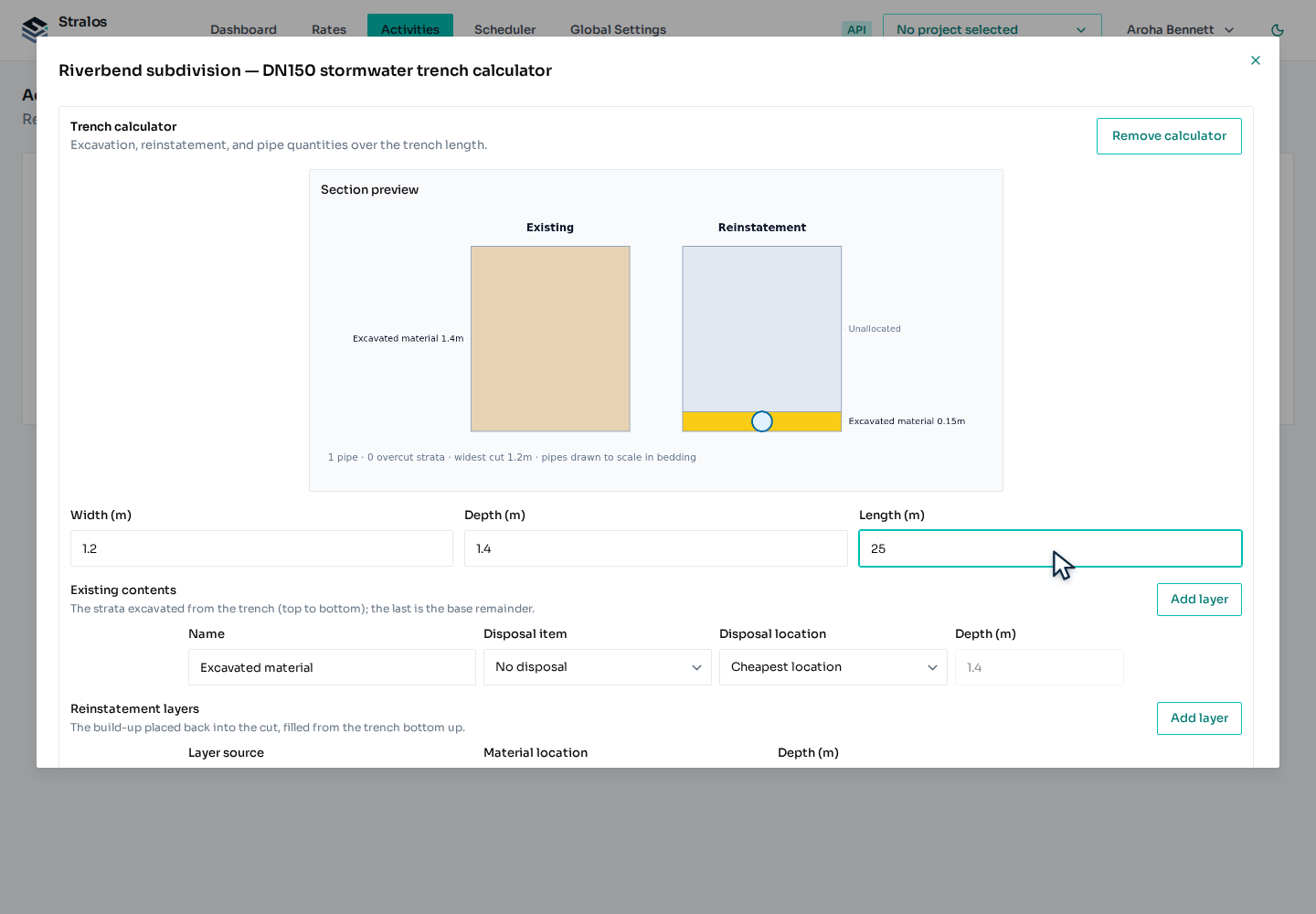
Materials for reinstatement layers
Each reinstatement layer row also has a Name (optional) field. If you leave it blank, Stralos derives a label from the selected material, or uses “From the dig” for backfill layers. A reinstatement layer that is bought in has a Material field. Use it to record what the layer is made of and how it is priced. Bulk Material Select Bulk Material to choose from resources in the Bulk Materials group in your resource library. Selecting a bulk material records its density and compaction percentage. The calculator uses that density to show the layer’s tonnes. A Bulk Materials item is offered when at least one live option has a readable density. When suppliers use different densities, the calculator shows the resulting density and tonnage range. Items without a readable density are omitted. Non Bulk Material Select Non Bulk Material to choose from any other resource in the library: any resource not in the Bulk Materials or Disposal groups. A resource picker (Pick a resource) appears beneath the material selector. The layer is then priced by the selected resource’s unit:- m: priced by the trench length.
- m²: priced by the layer’s surface area.
- m³: priced by the layer’s volume.
- Any other unit: quantity 1 in the selected resource’s unit.
Existing strata
Each stratum row has a Name (optional) field. If you leave it blank, Stralos fills in a default name automatically. You can type a custom name to override it. Each existing stratum in the calculator has two destination fields. Material destination controls where the excavated spoil goes:- Stay onsite: material remains on site and is available for reinstatement layers. No disposal material is needed.
- Remove: material is carted away. You must select a disposal material before you can save.
Saving and assigning calculator layers
Select Save and update estimate items to save the geometry and reconcile generated component rows across every activity the calculator feeds. Existing rate and source selections on those component rows survive a geometry rerun; pricing is edited on the component row, not in the calculator. Each calculator layer has a Used by cell. A saved, unsplit layer writes a destination change immediately without leaving the calculator page or saving the geometry draft. A layer added only in the current unsaved draft holds its destination until the calculator is saved, because it does not yet exist in the server’s layer catalogue. A zero-output layer cannot be assigned. A split excavation stratum shows an allocation summary and opens the partition editor instead of collapsing the split. Open the work item’s Calculations tab and select Layer destinations, or select Split… on a layer row inside the calculator workbench, to edit the destination register. The standalone editor opens as a side sheet so the calculator geometry stays visible beside it. For each layer, choose the destination work item and activity component, physical output, and, for excavation strata, its share. The editor keeps changes local until Save destinations, attempts every changed calculator, and shows save errors and warnings inline. Closing with unsaved changes asks for confirmation.Pit / Structures calculator
The Pit / Structures calculator measures pit excavation around one or more structures and the reinstatement layers that fill the hole back. Each structure can sit on the floor or be placed a set distance from the floor or the surface. Create it from the activity’s action menu with New Pit / Structures calculator, edit its physical configuration, and save to reconcile the linked component rows.Volume calculator
The Volume calculator derives excavation and reinstatement quantities from plan dimensions or a manual area and depth. Activities have no SOQ host quantity, so their area source is manual. Saving reconciles the linked component rows.Good practice
- Use activities for repeatable construction methods, and assemblies for sets of materials you count per unit.
- Keep names and units aligned with how estimators measure scope.
- Keep lines ordered in the sequence estimators expect to review.
- Use tags to group related activities so they are easy to filter.
- Retire or update inactive items rather than leaving stale build-ups in active use.